
Where to sign in
The IN-STORE member area is where your account, intake form and client cabinet live. You can open it from any page of the site: press the orange "Start Here" button in the top-right corner of the header, or the "LOGIN" button under "Member Area" at the bottom of the page.
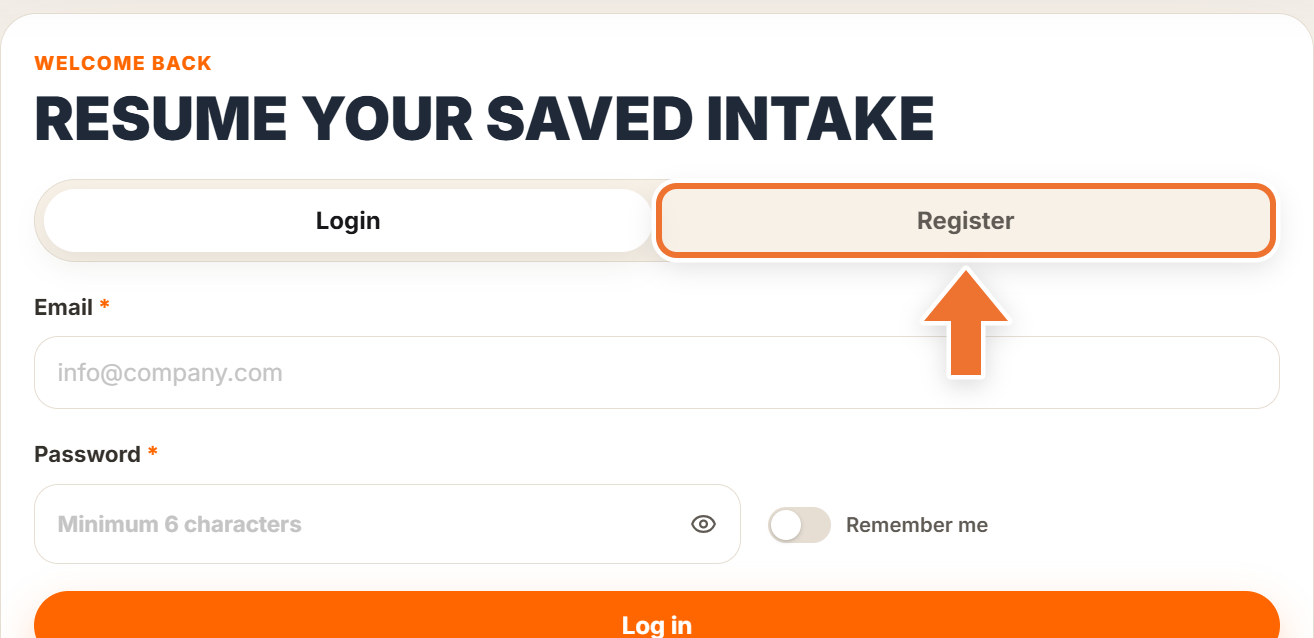
The sign-in panel has two tabs at the top: "Login" for an existing account and "Register" for a new one.

Step 1 – open the Register tab
On the sign-in panel, switch from "Login" to the "Register" tab. The heading changes to "Save your intake by account" and the registration form appears.
Step 2 – fill in the registration form
- Full name – required. This is how our team will address you.
- Company and Website – optional, but they help us prepare before you start your intake. Your website can also be a social media page.
- Email – required. It becomes your login and receives confirmations and notifications.
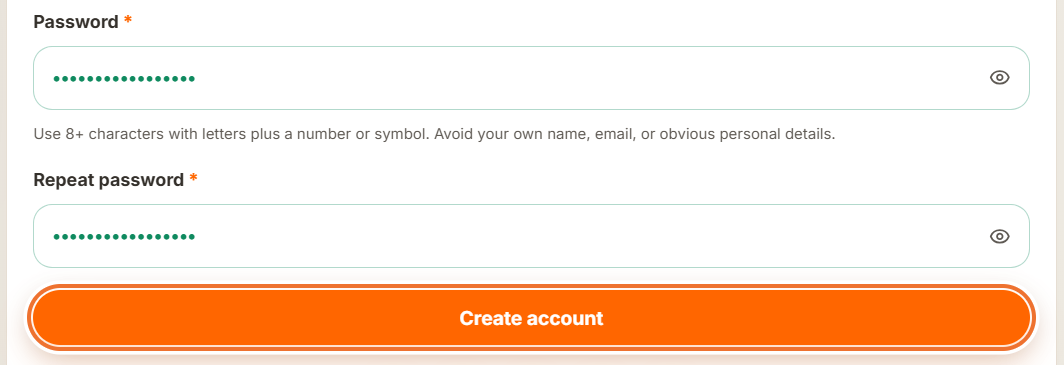
- Password – at least 8 characters, with letters plus a number or symbol. Avoid your own name, email or other obvious personal details. The field border turns green once the password is strong enough.
- Repeat the password in the "Repeat password" field and press "Create account".
Step 3 – confirm your email
After you press "Create account" you will see the message "Check your inbox and confirm your email before logging in." We send you an email titled "Confirm your email to access your IN-STORE intake". Open it and press "Verify your email".
The link brings you back to the sign-in panel with the message "Email confirmed. You can log in now." Stay on the "Login" tab, enter your email and password, and press "Log in".
The confirmation link is valid for 24 hours, and you cannot log in with a password until it has been opened. If the email does not arrive within a few minutes, check your spam folder.
Continuing with Google, Apple, Facebook, LinkedIn or Microsoft
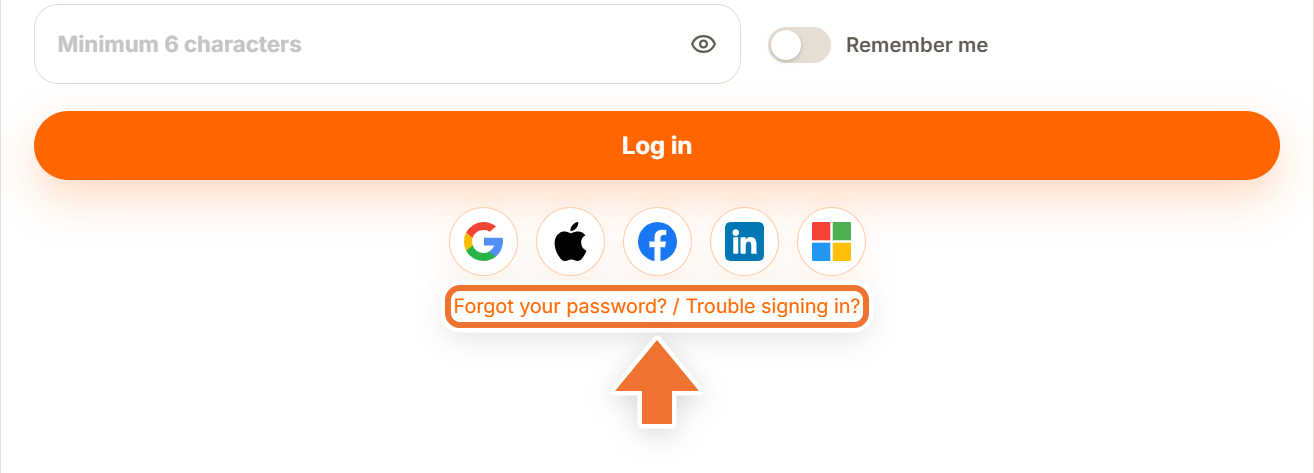
Under the main button there is a row of partner sign-in buttons: Google, Apple, Facebook, LinkedIn and Microsoft. Press the one you use, choose your account in the window that opens, and you return to the member area already signed in. There is no separate email confirmation and no password to remember.
The same buttons work for your first visit and for every sign-in after that, on both the "Login" and the "Register" tab.

Use the same method every time. If you registered with Google, sign in with Google again, so you always land in the same account.
Signing back in
Next time, open the member area and stay on the "Login" tab. Enter your email and password and press "Log in". If you registered with a partner account, press the same partner button again.
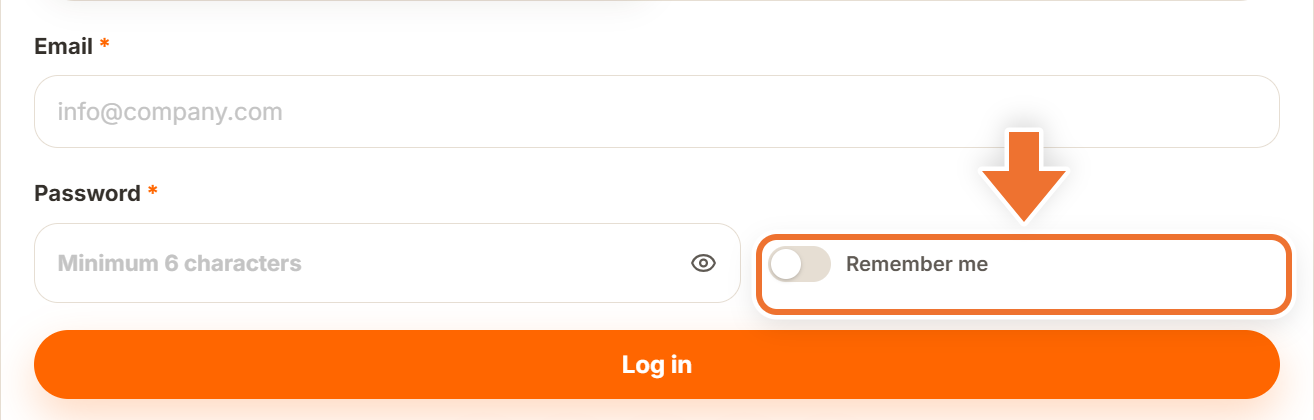
Turn on "Remember me" next to the password field to stay signed in on that device for up to 30 days. Without it, you are signed out after 60 minutes of inactivity. Leave it off on a shared or public computer.
Cannot get in?
Use the "Forgot your password? / Trouble signing in?" link under the partner sign-in buttons. It takes you to the password recovery page.
If you opened a link to a specific page of your cabinet, for example from an email or a text message, you will see a sign-in screen without the "Register" tab. Sign in and you land straight on the page the link points to.
What happens after you sign in
The first time you sign in, you are asked to review and accept the public offer, then to start your subscription. New IN-STORE accounts get the first month free. Once your subscription is active, the marketing intake form opens.