
Why we ask for access
As part of your content marketing service, In-Store publishes videos to your TikTok account on your behalf. TikTok handles this through its Business Center, which lets you grant an agency permission to post without sharing your password. You stay the owner of the account, you can keep posting yourself, and you can remove our access from the TikTok app at any time. The whole process takes about five minutes.
How the connection works
TikTok does not use invitations or usernames for this. Instead, we generate a QR code and send it to you, and you scan it inside the TikTok app while signed in to your account. Scanning is what grants the permission, so the code is the only thing you need from us.
We send you the QR code during onboarding. It is specific to your connection, so please do not share it with anyone else.
What you’ll need
- A TikTok account for your business, signed in on your phone.
- The TikTok app, updated to a recent version.
- The QR code we sent you, open on a computer screen or printed, so you can scan it with your phone.
- About five minutes.
Step 1 – Make sure your account is a Business account
TikTok only allows this kind of connection on a Business account. If yours is still personal, TikTok will prompt you to switch during Step 2, and you can also do it in advance:
- Open the TikTok app and go to your profile.
- Tap the three lines in the top-right corner, then Settings and privacy.
- Tap Account, then Switch to Business Account, and follow the prompts.
Switching is free and reversible. Your videos, followers and username all stay exactly as they are.
Step 2 – Scan our QR code
Open the QR code we sent you on another screen, then scan it from inside the TikTok app:
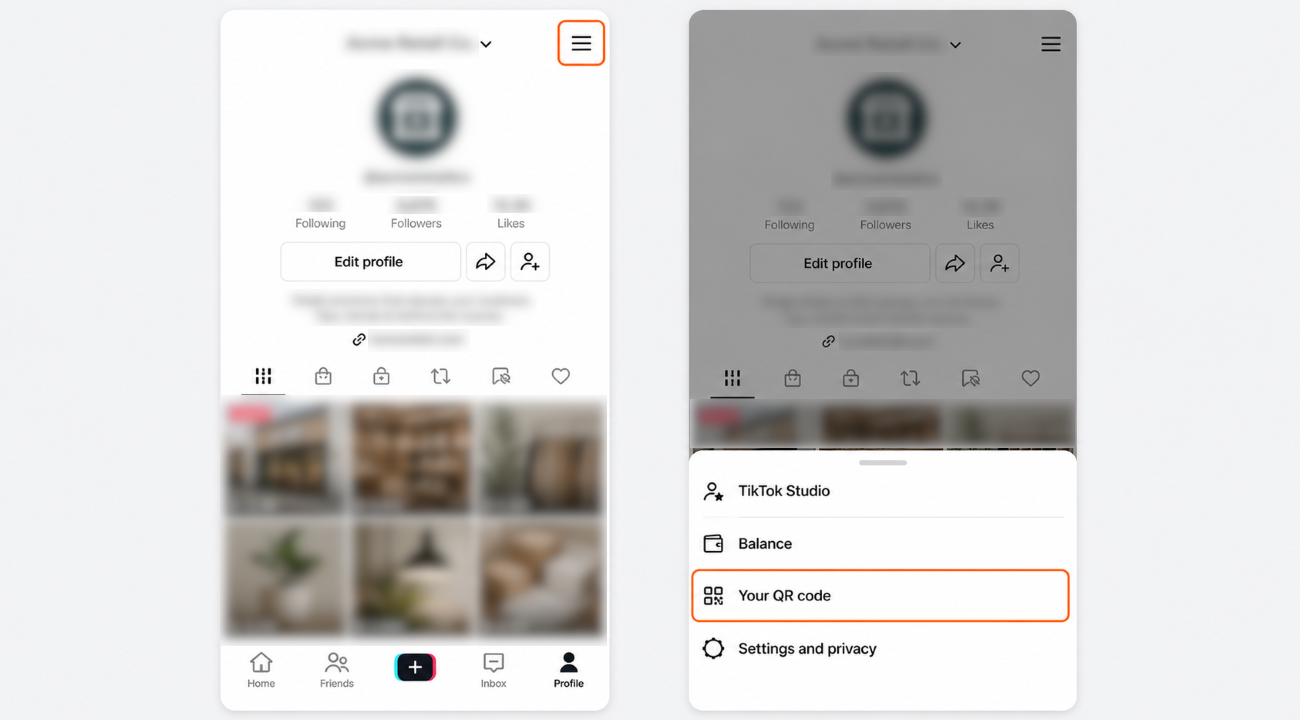
- Go to your Profile page.
- Tap the three lines in the top-right corner.
- Tap Your QR code.
- Tap the scan icon in the top-right corner, and point your phone at our code.
Step 3 – Grant the posting permission
TikTok then asks what In-Store may do with your account. Choose Manage account, and under "Publish and manage new videos", choose Show on TikTok profile and in ads.
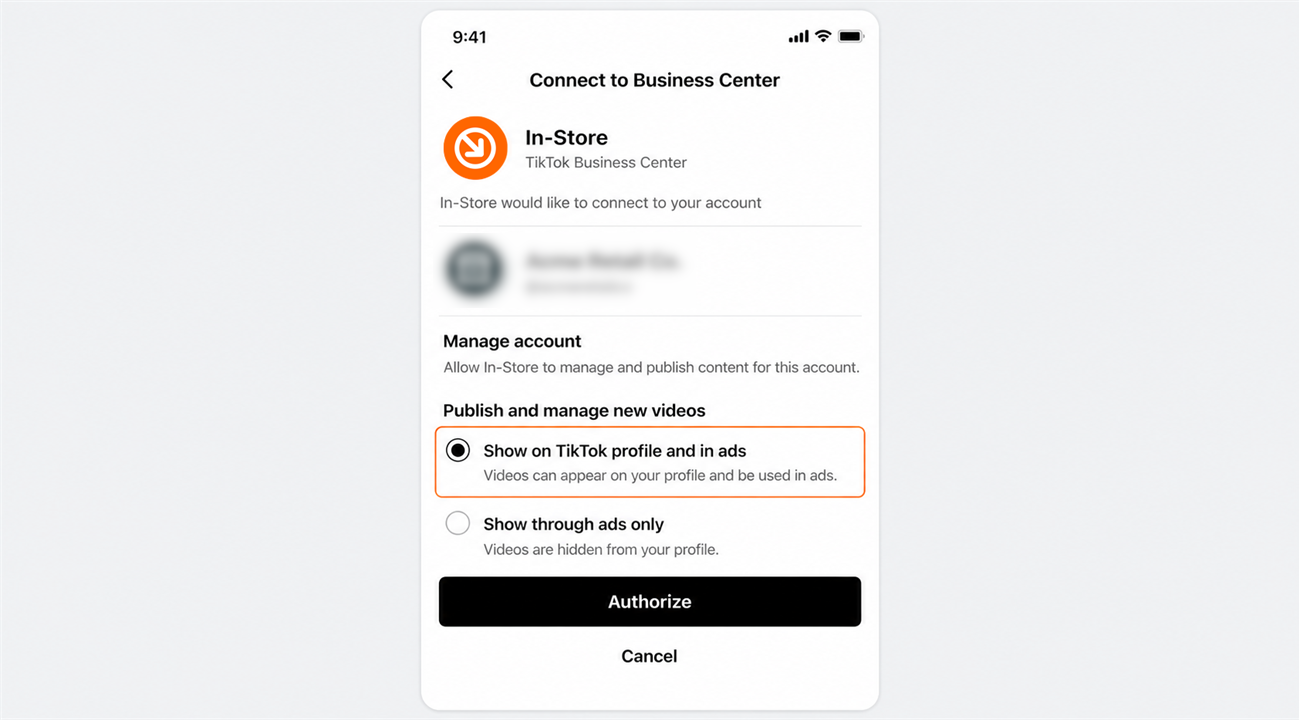
The other setting, "Show through ads only", hides anything we publish from your profile and shows it only as paid advertising. If you pick that one, the connection will look successful but nothing we post will appear on your account.
Step 4 – Confirm the connection
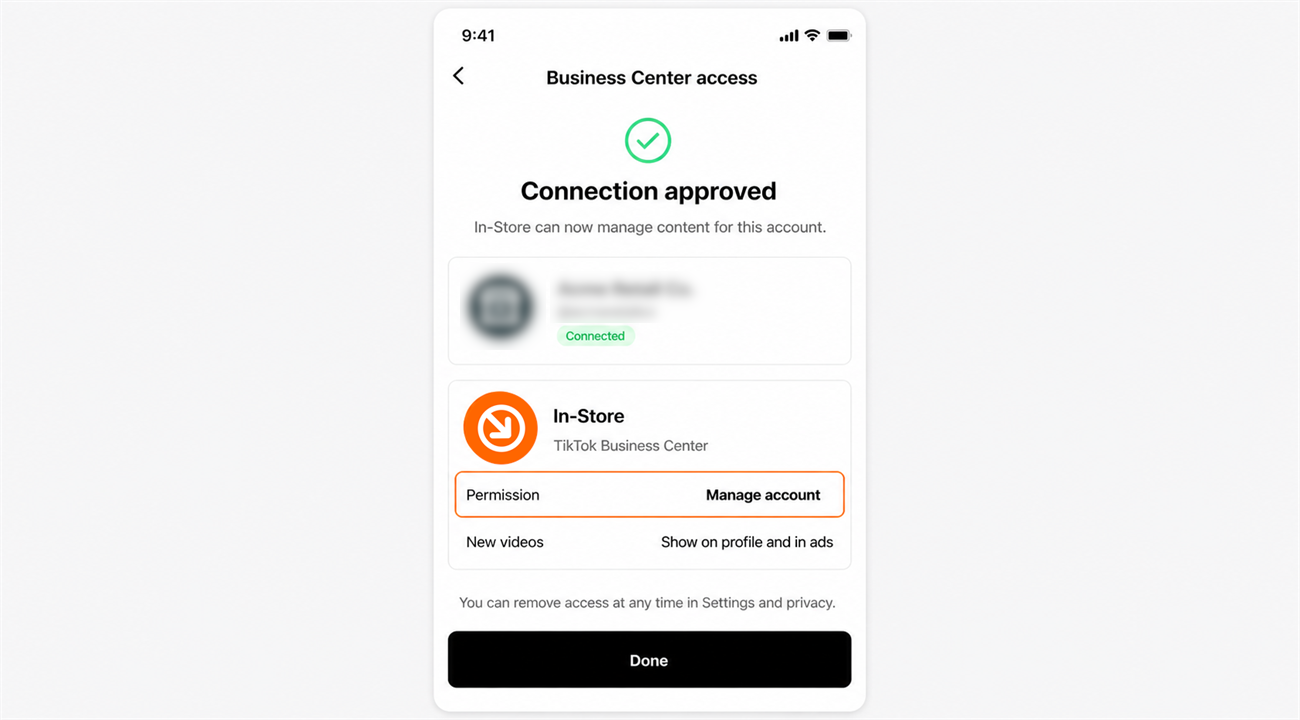
Once you approve, the connection is live and there is nothing to send us. We can see your account on our side and will confirm with you.
What happens next
That is it. In-Store can now publish to your TikTok account, and we will confirm with you once publishing is live. You remain the owner of the account throughout, and you can carry on posting yourself whenever you want.
Removing our access at any time
You are always in control, and you can revoke our access from your phone without contacting us:
- Open the TikTok app and go to your profile.
- Tap the three lines in the top-right corner, then Settings and privacy.
- Tap Security and permissions, then Apps and services permissions.
- Tap TikTok Business Center, select In-Store, and tap Remove Access.
Need a hand?
Ask our interactive chat bot or give us a call. Our contact info can be found in the link below.