

Why we ask for access
As part of your content marketing service, In-Store publishes updates to your WhatsApp Channel on your behalf. WhatsApp handles this by letting a channel owner invite admins, so you do not share your password and we never see your chats. You stay the owner of the channel, you can keep posting yourself, and you can dismiss us whenever you choose. The whole process takes about five minutes.
What an admin can do, and what that means
WhatsApp only offers one admin role, so it is worth being clear about what it covers. As an admin, In-Store can post updates, and can also change your channel’s name, icon and description, see your channel metrics, and edit or delete any update for up to 30 days after it was posted, including updates you wrote yourself.
We only use it to publish the content we produce for you. But unlike the other platforms we connect to, WhatsApp has no narrower option, so there is no setting that restricts us to posting alone.
Only you can dismiss an admin, delete the channel or transfer ownership. Those stay with the owner, and an admin cannot do any of them.
What your followers see
Nothing about us. Channel updates are sent from the channel itself, so your followers never see our name, our profile picture or our phone number. As far as your audience is concerned, the updates come from you.
What you’ll need
- A WhatsApp Channel for your business, and to be its owner. Only the owner can invite admins.
- The In-Store phone number, which we provide.
- Your phone, with WhatsApp installed.
- About five minutes.
Step 1 – Save the In-Store number as a contact
Add the number we gave you to your phone’s contacts, under a name you will recognise, such as In-Store. WhatsApp will then show it when you look for admins to invite.
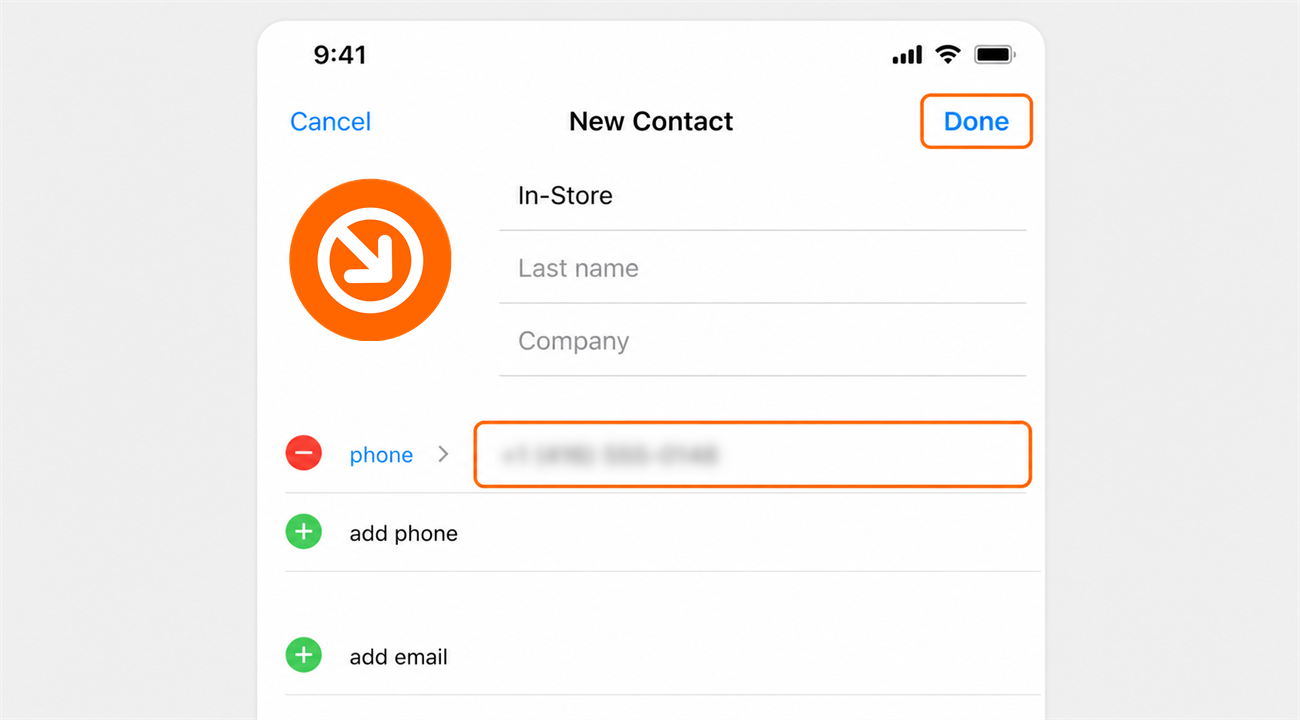
Sending the invitation shares your personal WhatsApp number, name and profile picture with us, because WhatsApp sends it as a chat message from your account rather than from your channel. Admins and owners can always see one another’s numbers. Your followers see none of this.
Step 2 – Open your channel info page
- Open WhatsApp and go to the Updates tab.
- Tap your channel to open it.
- Tap your channel name at the top.
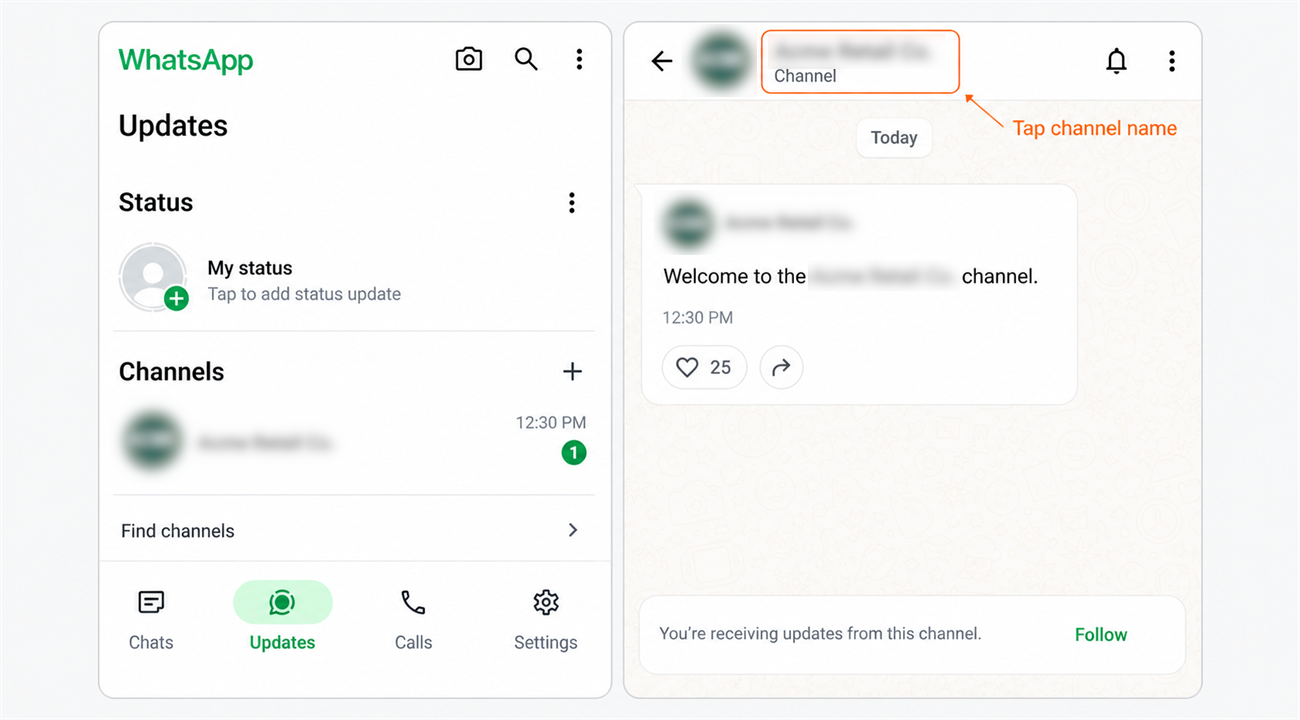
On WhatsApp for desktop, click the Channels icon instead, then your channel, then the channel name. Everything after that works the same way.
Step 3 – Invite In-Store as an admin
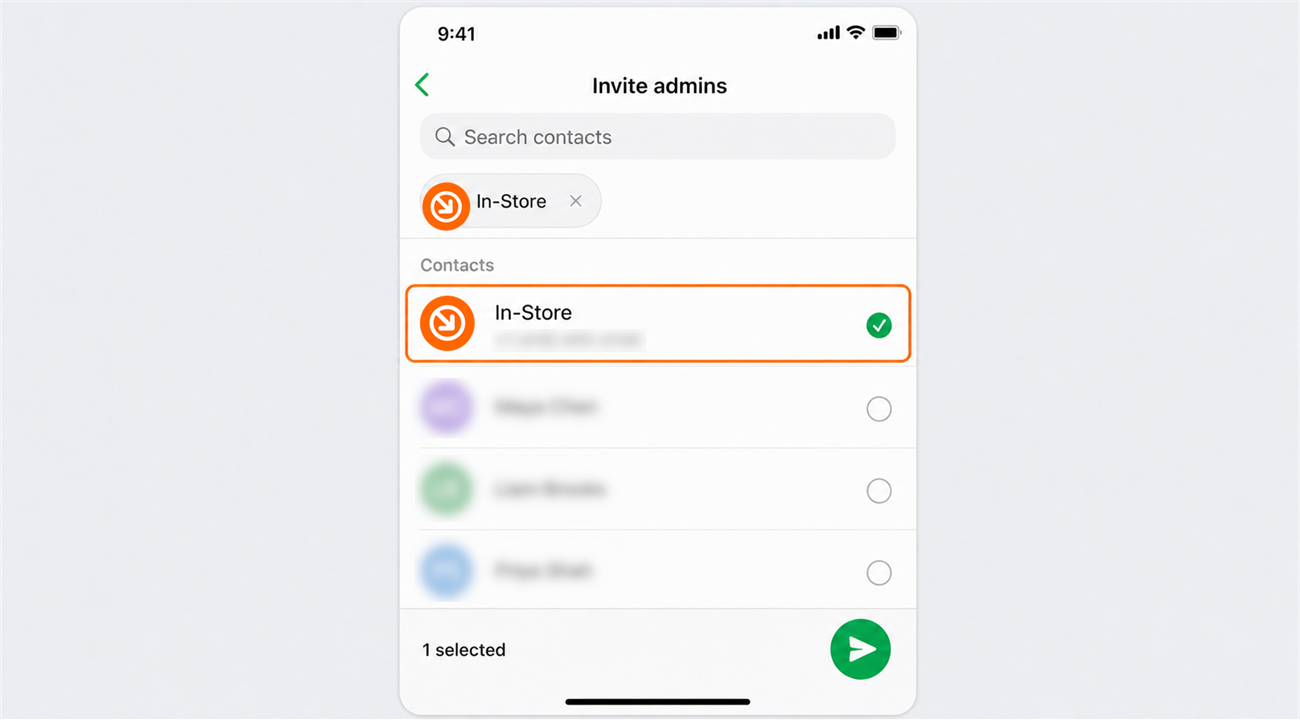
- Tap Invite admins.
- Select In-Store from the list.
- Add a short message if you like, then send the invitation.
Step 4 – Confirm the connection
Your invitation opens a chat with us and appears in the pending list on your channel info page. Once we accept, In-Store moves to the admin list at the top of your followers, and we will confirm with you that publishing is live.
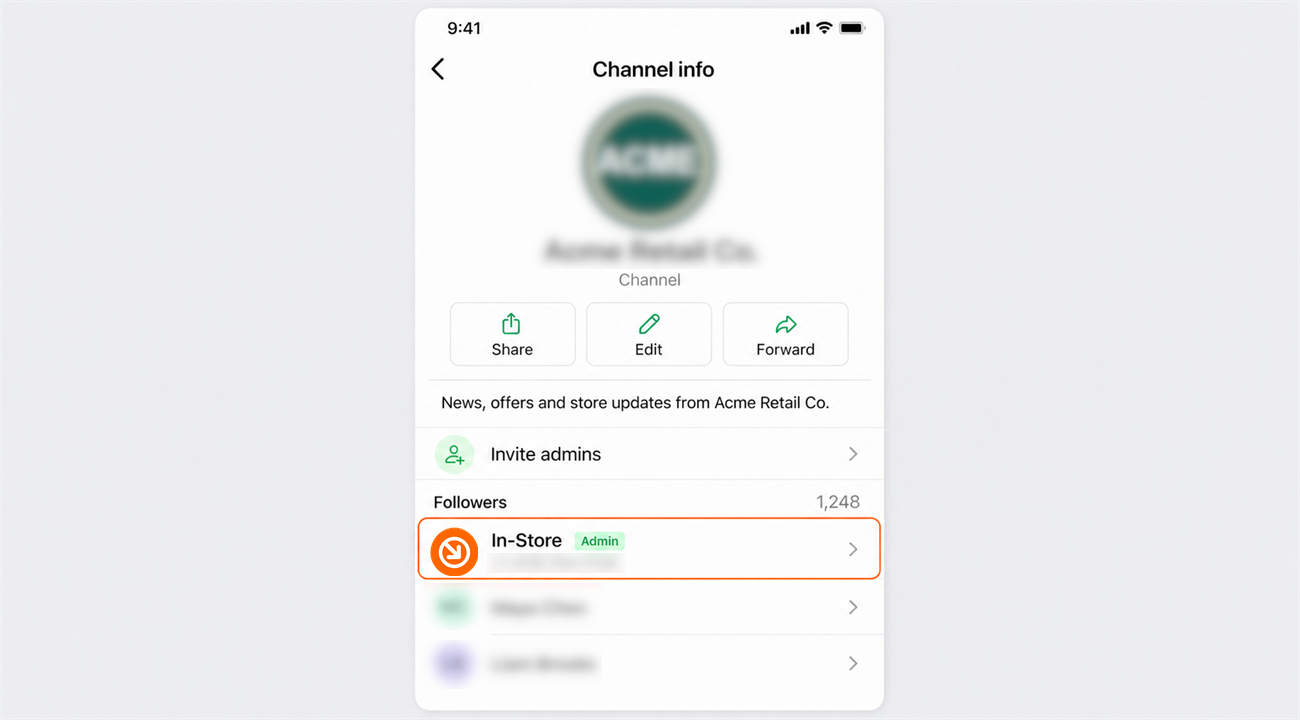
Invitations expire after seven days if they are not accepted. If ours lapses, send a new one and it will work the same way.
What happens next
That is it. In-Store can now post updates to your channel, and we will confirm with you once publishing is live. You remain the owner throughout, and you can carry on posting yourself whenever you want.
One thing worth knowing about channels
Updates can be edited or deleted for 30 days after posting, and after that they are permanent for everyone, including you. So if you want something taken down, it is worth telling us early rather than a month later.
Removing our access at any time
You are always in control, and you can dismiss us yourself without contacting us. Open your channel info page, tap In-Store in the admin list, then choose Dismiss as admin and confirm. Our access ends immediately, and anything already published stays on your channel.
Need a hand?
Ask our interactive chat bot or give us a call. Our contact info can be found in the link below.