
将您的 AI 连接到 IN-STORE(MCP)

连接 ChatGPT

OpenAI 标志

从 ChatGPT 插件目录连接 IN-STORE,或将其添加为自定义 MCP 服务器。

指向 连接 ChatGPT 指南的二维码
在手机上打开本指南
适用于 ChatGPT,即 OpenAI 开发的 AI 助手。

通过 ChatGPT 插件目录

  1. 在 ChatGPT 中打开 Plugins。
  2. 搜索 IN-STORE 并点击 Connect。
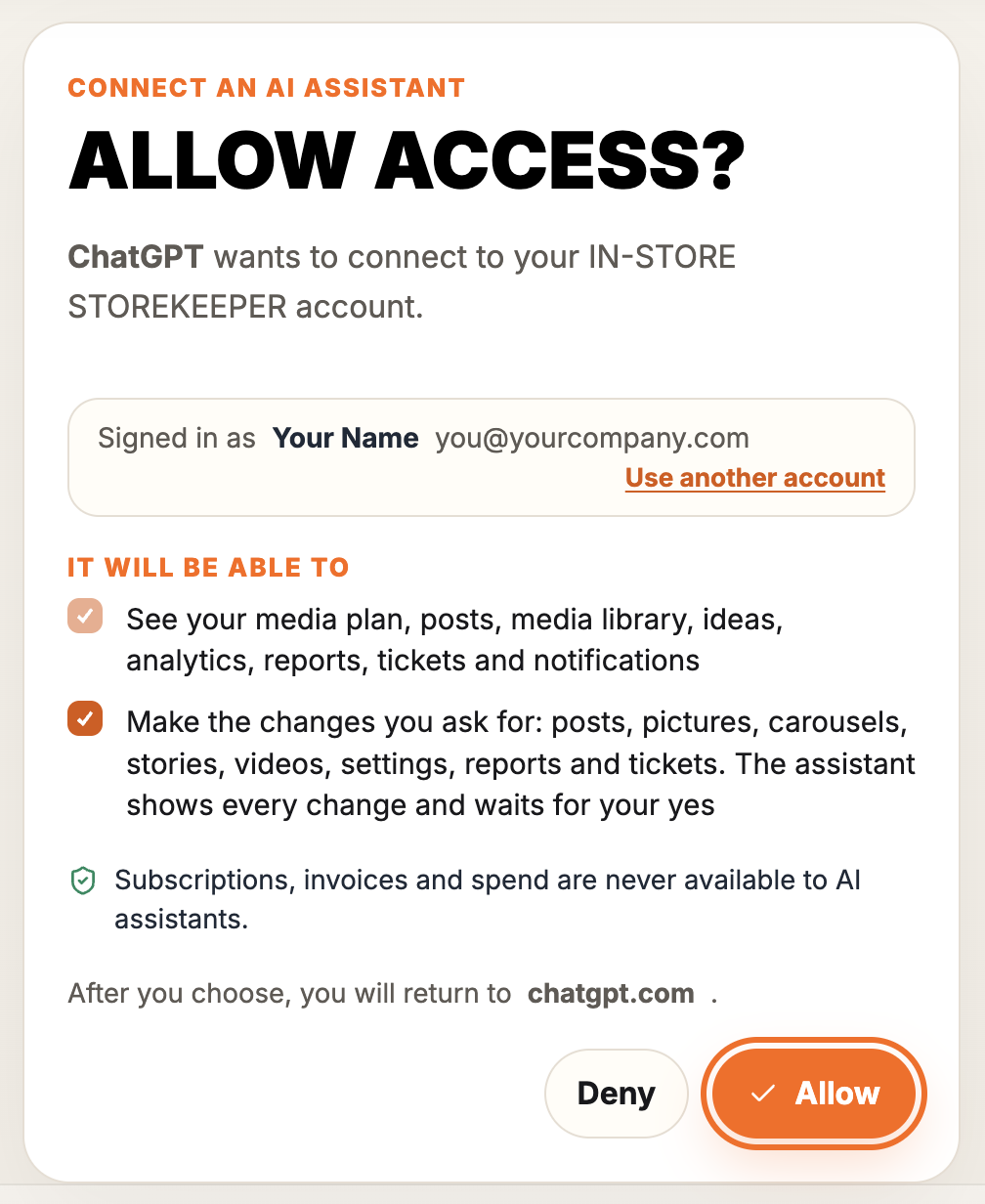
  3. 登录 IN-STORE,在“Allow access?”页面上核对权限,然后点击 Allow。
IN-STORE 已在 ChatGPT 插件目录中上架。您也可以直接打开它在目录中的页面。

添加自定义 MCP 服务器(管理员)

目录中的插件提供的是客户账号的工具。IN-STORE 工作区的管理员如需在 ChatGPT 中使用管理工具,请改为将 IN-STORE 添加为自定义 MCP 服务器。网页版 ChatGPT 支持带读写工具的自定义 MCP 服务器;能否使用取决于您的工作区权限和安全设置,可能需要管理员允许该连接。

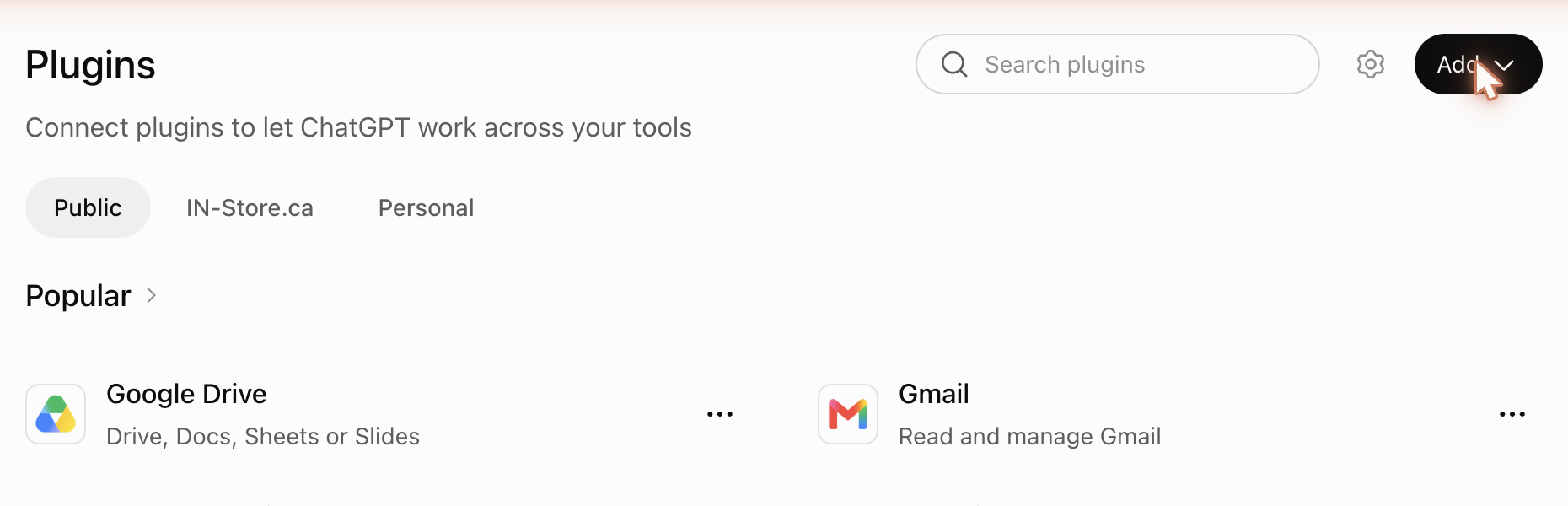
  1. 在网页版 ChatGPT 中,选择左侧栏的 Plugins,点击右上角的 Add,然后选择“Add custom MCP server”。
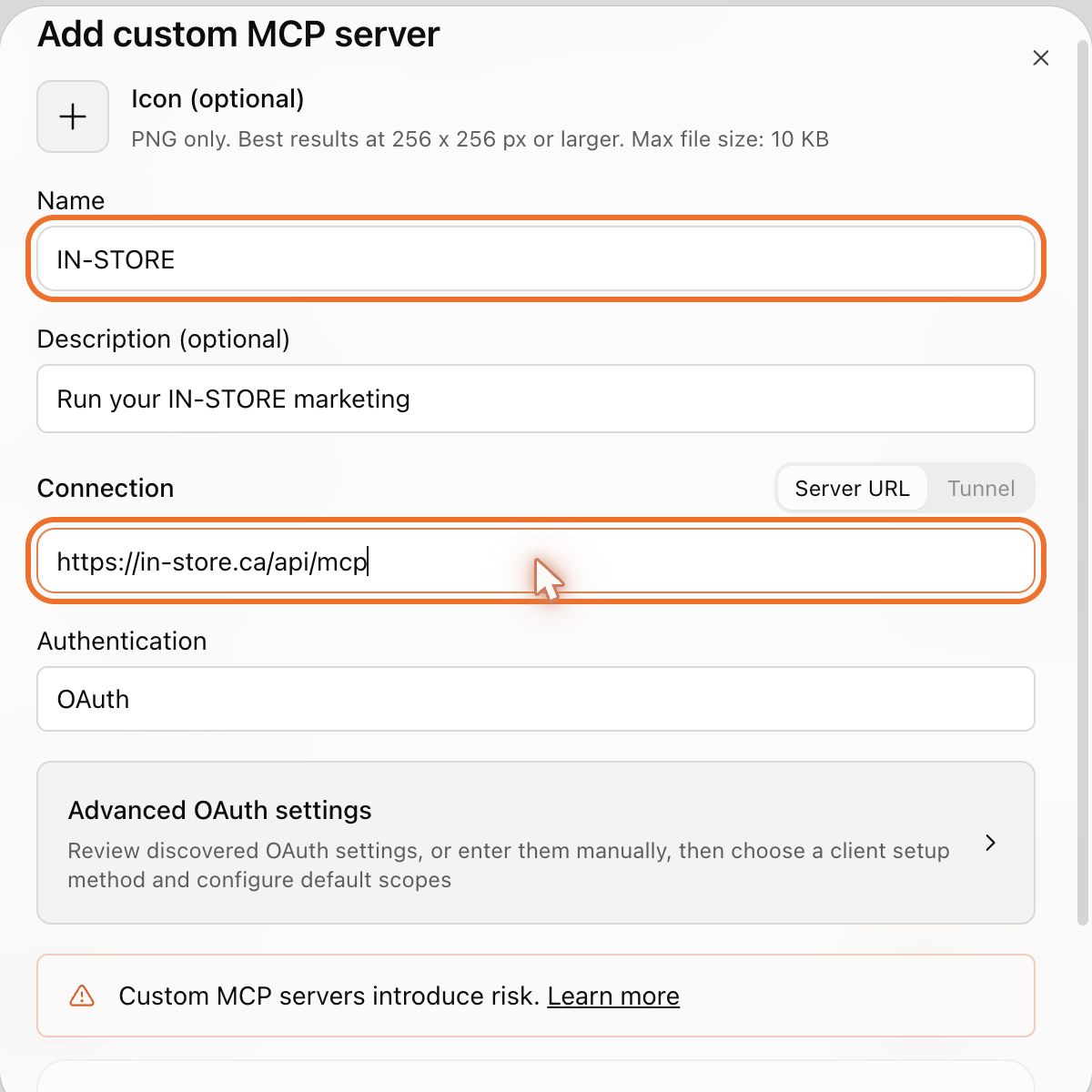
  2. Name:IN-STORE。Connection:Server URL 填 https://in-store.ca/api/mcp。Authentication:OAuth。描述为选填项。
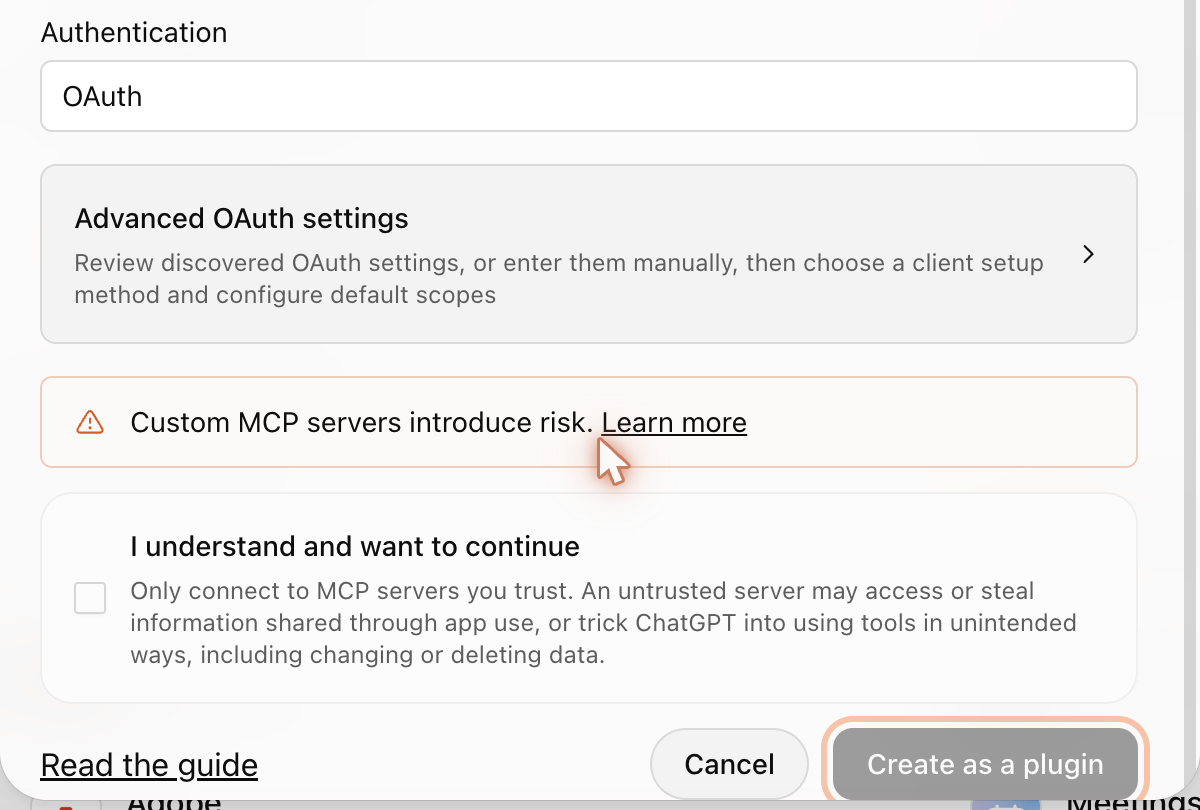
  3. 勾选“I understand and want to continue”,然后点击“Create as a plugin”。
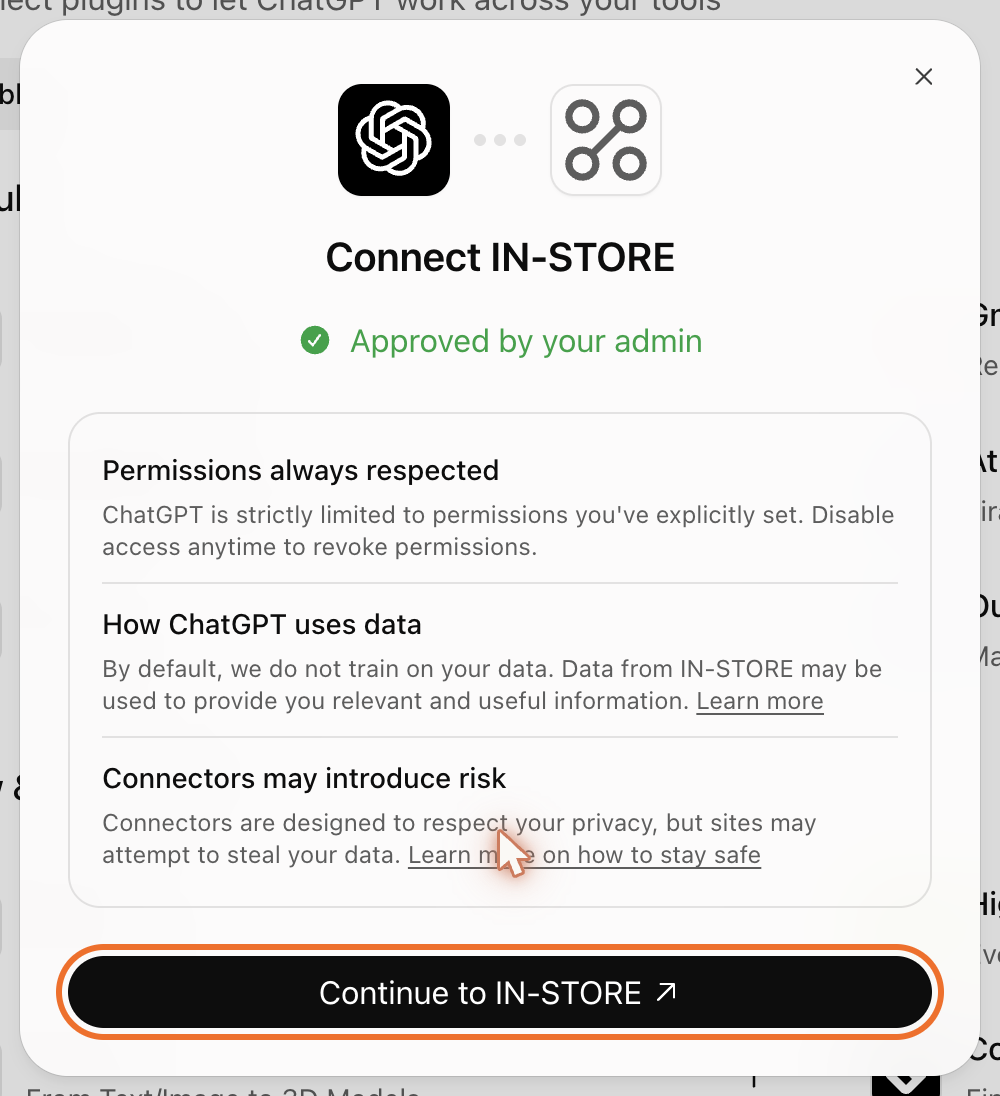
  4. 在“Connect IN-STORE”窗口中点击“Continue to IN-STORE”。此时会打开 in-store.ca 的一个页面:如有提示请登录,核对权限后点击 Allow。
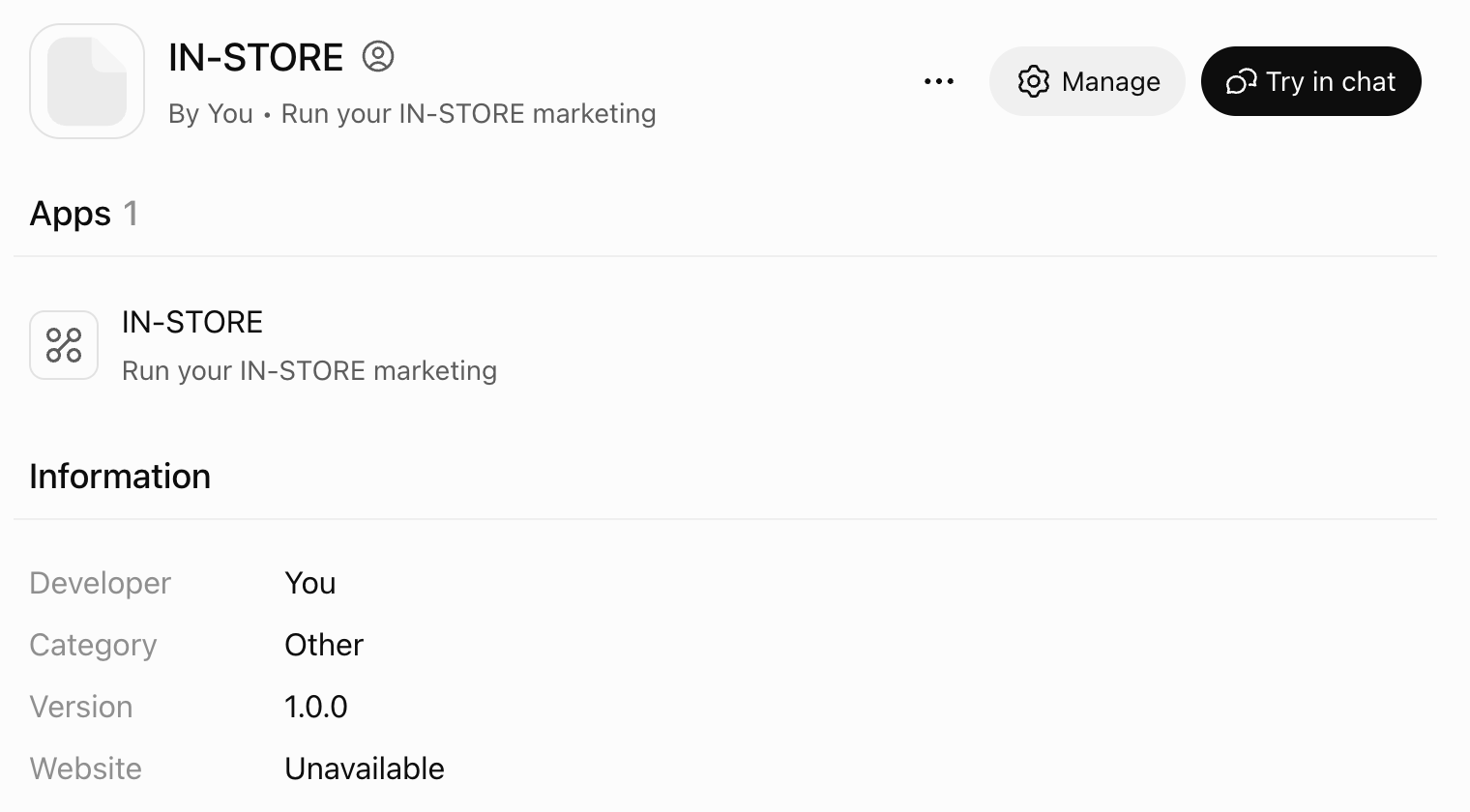
  5. 您回到 ChatGPT 后,IN-STORE 会列在 Installed 下。点击“Try in chat”,或在任意对话中输入 @ 并选择 IN-STORE。
服务器 URLhttps://in-store.ca/api/mcp
ChatGPT Plugins 页面,Add 菜单已打开,“Add custom MCP server”已高亮
Plugins、Add、“Add custom MCP server”。
“Add custom MCP server”窗口,名称 IN-STORE 和服务器 URL https://in-store.ca/api/mcp 已高亮,Authentication 为 OAuth
名称 IN-STORE,服务器 URL https://in-store.ca/api/mcp,Authentication 选择 OAuth。
窗口底部,“I understand and want to continue”和“Create as a plugin”按钮已高亮
勾选“I understand and want to continue”,然后点击“Create as a plugin”。
ChatGPT 的“Connect IN-STORE”窗口,“Continue to IN-STORE”按钮已高亮
点击“Continue to IN-STORE”。
ChatGPT 的 IN-STORE“Allow access?”页面,Allow 按钮已高亮
在 in-store.ca 上:核对账号和权限,然后点击 Allow。
ChatGPT 中的 IN-STORE 插件页面,显示 Manage 和“Try in chat”按钮
已安装:用“Try in chat”打开对话,或在任意对话中输入 @IN-STORE。

须知

  • 对于会更改内容的操作,ChatGPT 会要求您确认,这是在 IN-STORE 两步确认之外的额外确认。
  • 在 ChatGPT 中移除插件并不会切断我们这边的访问权限。请在客户后台“Settings”中的“AI agents”里撤销。
接下来您想做什么?

创建账户、浏览简明解答,或向我们发送请求。