
Why we ask for access
As part of your content marketing service, In-Store publishes posts to your Facebook Page on your behalf. To let us do this securely, you add In-Store as a partner on your Meta Business account and give us access to your Page. We ask only for permission to create and publish posts, not to change your Page settings or manage who else has access. You stay the owner of your Page and your business at all times, and you can remove our access whenever you choose. The whole process takes about ten minutes.
The ID you will need from us
You do not share your password with us. Instead, you give an In-Store Business Portfolio ID access to your Page.
We give you the exact In-Store Business Portfolio ID during onboarding. You paste it in Step 3 below.
What you’ll need
- A Facebook Page for your business inside a Meta Business account, the free business portfolio Meta provides.
- Full control of that business portfolio. Partner access can only be granted at that level, so a Page-only admin role is not enough.
- The In-Store Business Portfolio ID we provided.
- About ten minutes.
Step 1 – Open Business settings and go to Partners
- Go to business.facebook.com/settings and sign in. You can also open Meta Business Suite, click Settings at the bottom-left, then Business settings.
- If you manage more than one business, select the one that owns your Page, using the picker in the top-left.
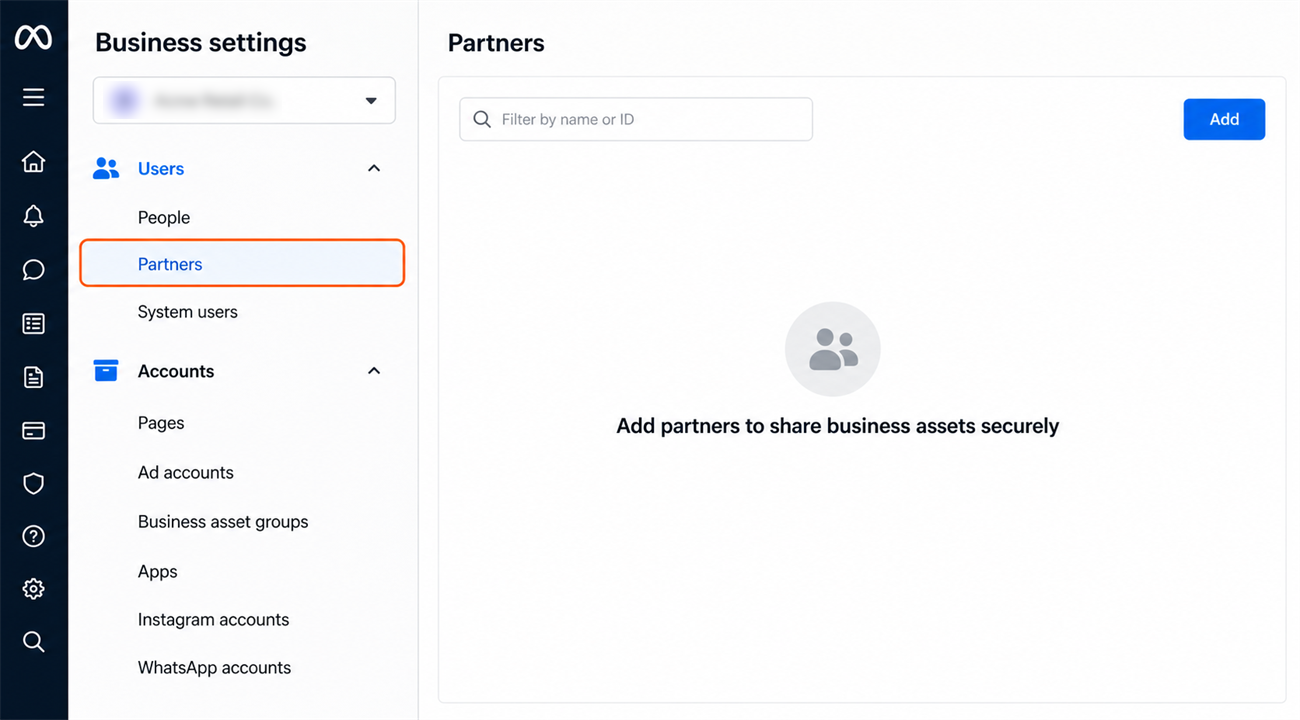
- In the left menu, under Users, click Partners.
Step 2 – Start adding In-Store as a partner
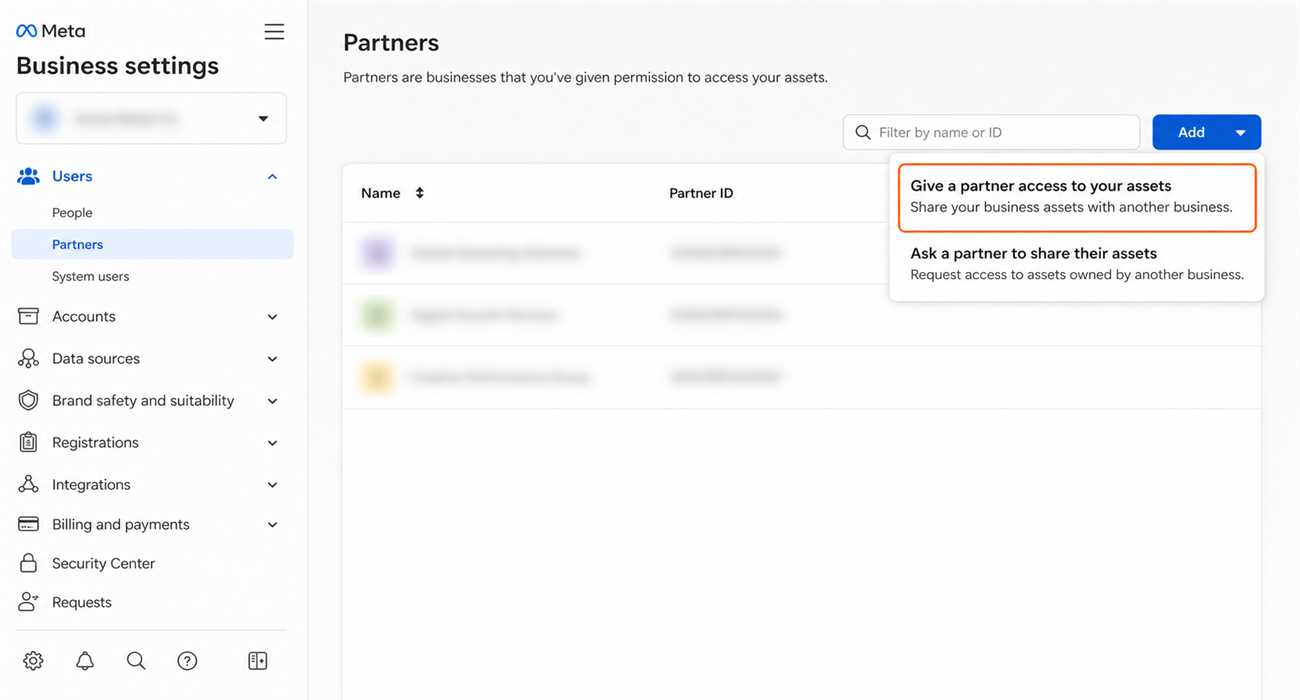
Click the blue Add button in the top-right corner, then choose Give a partner access to your assets. The other options in that menu do the reverse and ask a partner for access to theirs, so make sure you pick this one.
Step 3 – Enter the In-Store Business Portfolio ID
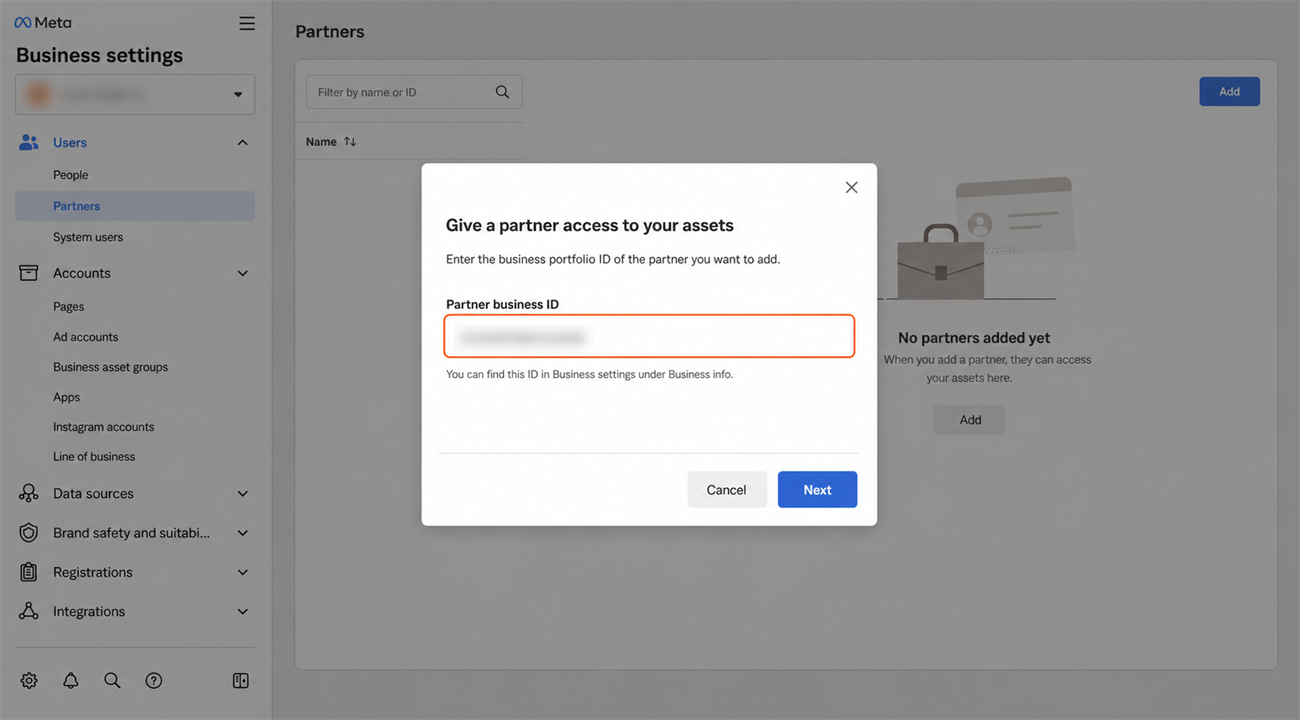
Paste the In-Store Business Portfolio ID we gave you into the box, then click Next. Check the number carefully before continuing, because access granted to the wrong ID goes to a stranger.
Step 4 – Give In-Store access to your Page
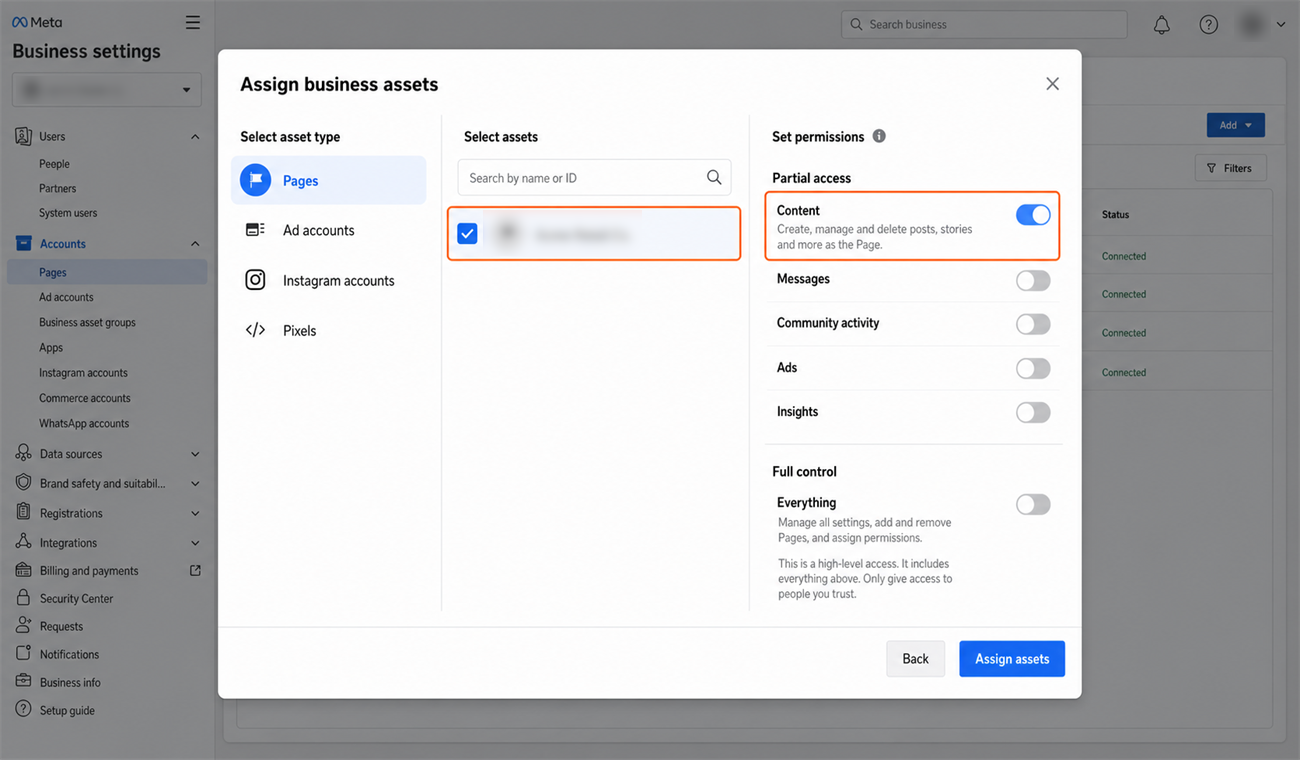
- Under asset type, select Pages.
- Check the box next to your Page.
- Turn on Content. This is the permission that lets us create and publish posts for you.
- Leave Full control switched off. We do not need it, and it would also hand over your Page settings and control of who else has access.
- Click Assign assets.
If you want us publishing to Instagram as well, choose the Page your Instagram account is already linked to. You can check which one that is in the Instagram app, under Edit profile. Instagram publishing runs through the linked Page, so granting us a different Page will not work.
Step 5 – Confirm the connection
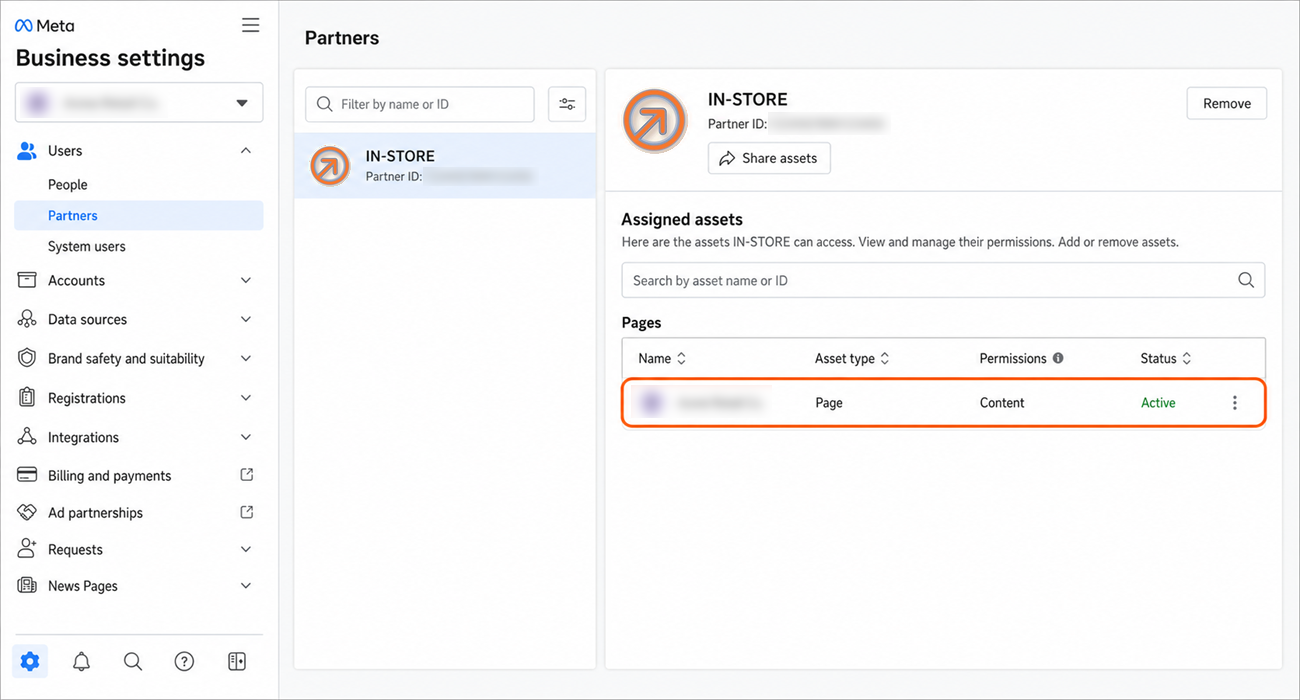
You should now see In-Store listed as a partner with access to your Page. If it is there, you are done.
What happens next
That is it. In-Store can now publish to your Page, and we will confirm with you once publishing is live. You remain the owner of your Page and your business throughout.
Removing our access at any time
You are always in control. To remove In-Store later, go to Business settings, then Partners, select In-Store, click Options, then Remove from business portfolio, and confirm. That revokes our access to your Page.
If you want to connect Instagram
Instagram is managed through the same Meta Business account, but it counts as a separate asset, so granting access to your Page does not grant access to your Instagram account. If you want us to publish to Instagram as well, follow the Instagram guide next. It picks up where this one leaves off and takes a few extra minutes.
Instagram publishing runs through whichever Page your Instagram account is linked to. If that is not the Page you just gave us access to, repeat Step 4 for the linked Page before you start the Instagram guide.
Need a hand?
Ask our interactive chat bot or give us a call. Our contact info can be found in the link below.