

Before you start
Instagram has no separate connection process for businesses. Publishing to an Instagram account always runs through a Facebook Page that the account is linked to, and both live inside the same Meta Business account. That is an Instagram rule, and it applies to every publishing tool, not only to us.
For that reason, this guide continues from our Facebook guide. If you have not read it yet, start there. It walks through granting In-Store access to a Meta asset in full, with screenshots, and the steps here assume you have seen that process once.
Having a Page does not mean we will post to it. We publish only to the channels you have asked us to, so you can have us running your Instagram while your Facebook Page stays untouched.
The Page does not have to be one you actively use. Many businesses keep a Page purely to satisfy this Instagram requirement and never post to it.
Why we ask for access
As part of your content marketing service, In-Store publishes posts to your Instagram account on your behalf. You do not share your password with us. Instead, your Instagram account is linked to your Facebook Page, and In-Store is given permission to publish content to it through your Meta Business account. You stay the owner of the account at all times, you can keep posting yourself, and you can remove our access whenever you choose.
What you’ll need
- Your Instagram login details, and your phone nearby if Instagram asks you to confirm it is you.
- An Instagram professional account, which is free to switch to if yours is still a personal account.
- About ten minutes.
Step 1 – Switch your Instagram account to a professional account
Instagram only allows publishing tools to connect to professional accounts, which means a Business or a Creator account. Either works for us. If your account is already professional, skip ahead to the next section.
- Open the Instagram app and go to your profile.
- Open the menu, then Settings and privacy.
- Find Account type and tools, then tap Switch to professional account.
- Choose Business (or Creator, if that fits you better) and follow the prompts.
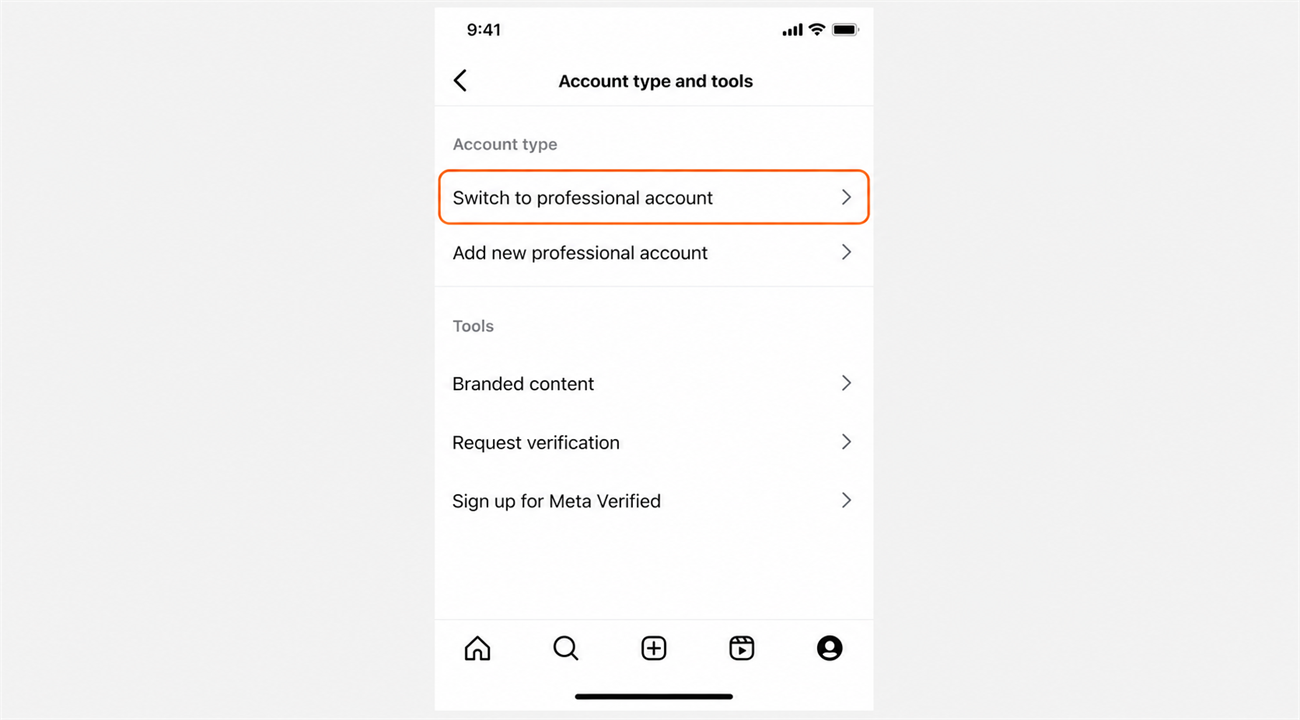
Your posts, followers and username all stay exactly as they are.
Step 2 – Link your Instagram account to your Facebook Page
While still in the Instagram app, open Edit profile, then look for the Page or Connected accounts option, and connect the Facebook Page you used when following the Facebook guide. Sign in to Facebook if you are asked to. Connecting the wrong Page will stop publishing from working.
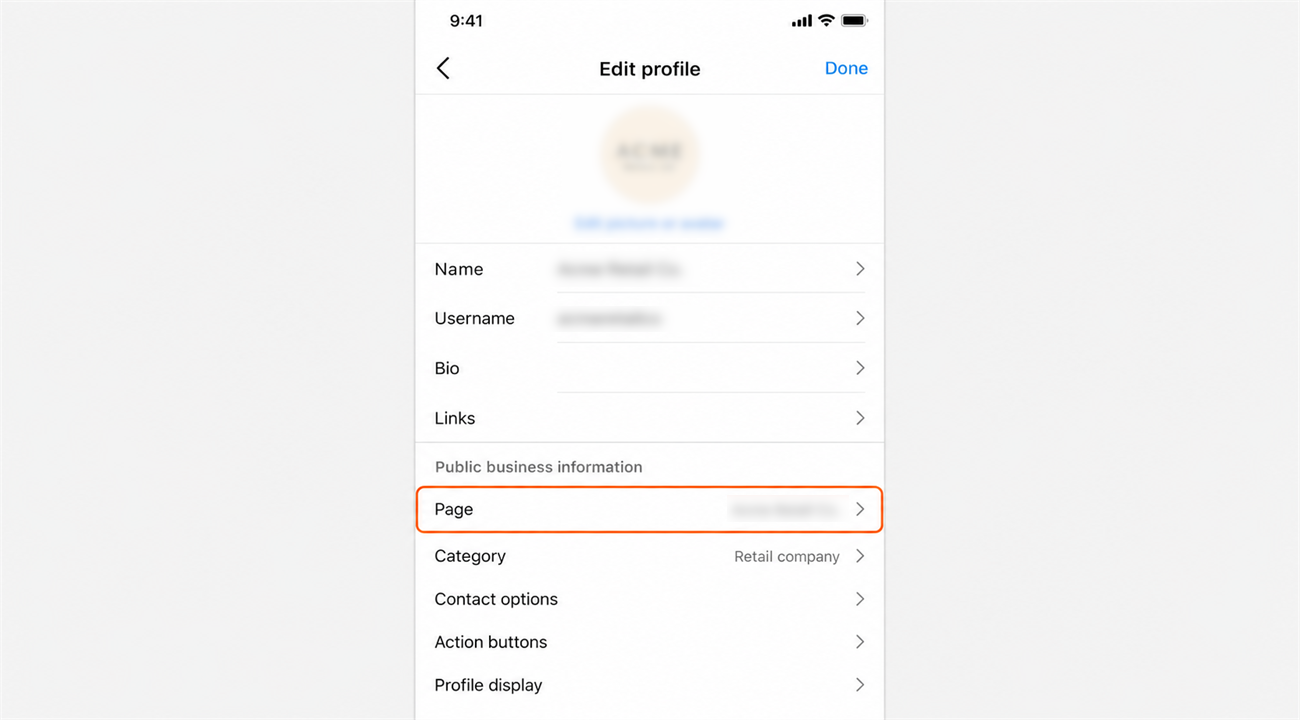
If Instagram offers to create a brand new Page for you here, do not accept. A Page made this way lands outside your business portfolio, which we cannot connect to. Please contact us if this happens so we can help you undo it.
Step 3 – Check that Instagram appears in your business portfolio
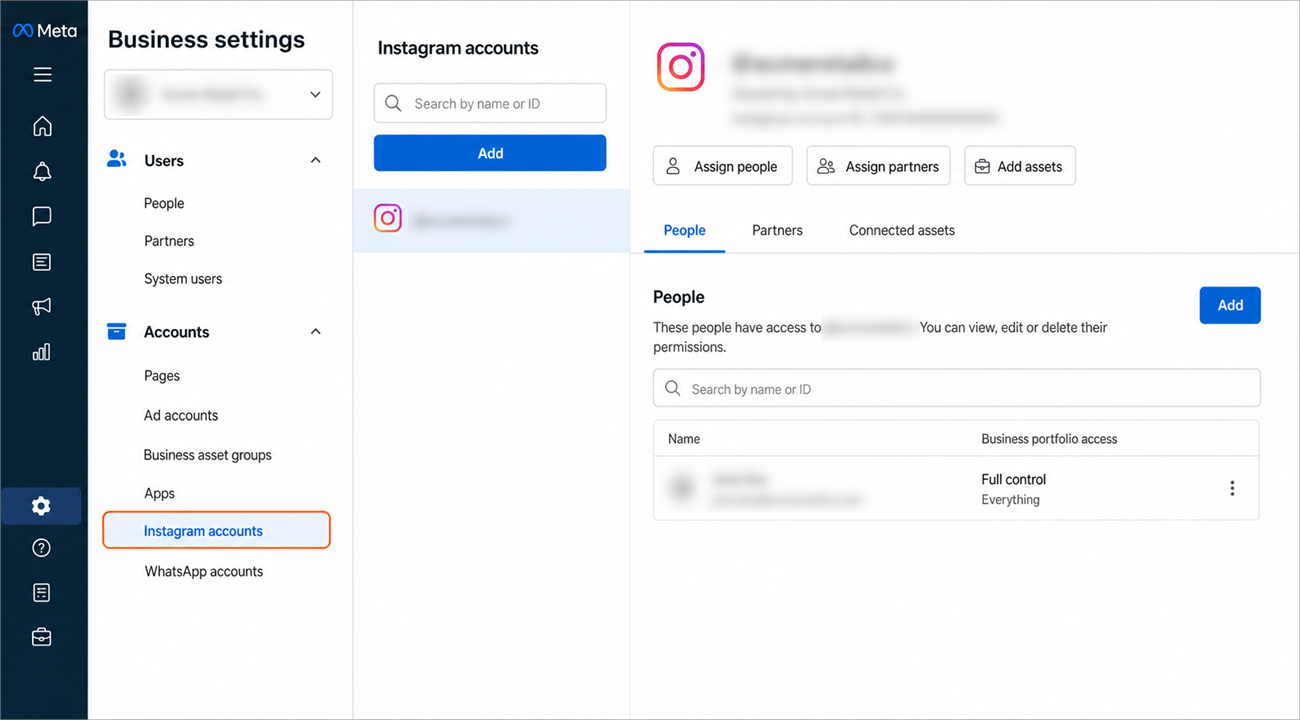
Go back to business.facebook.com/settings and sign in. In the left menu, under Accounts, click Instagram accounts. Your account should be listed there, because linking it to the Page in Step 2 adds it to the business portfolio that owns the Page.
If it is not listed, add it with the Add button and sign in to Instagram when prompted.
Step 4 – Give In-Store access to your Instagram account
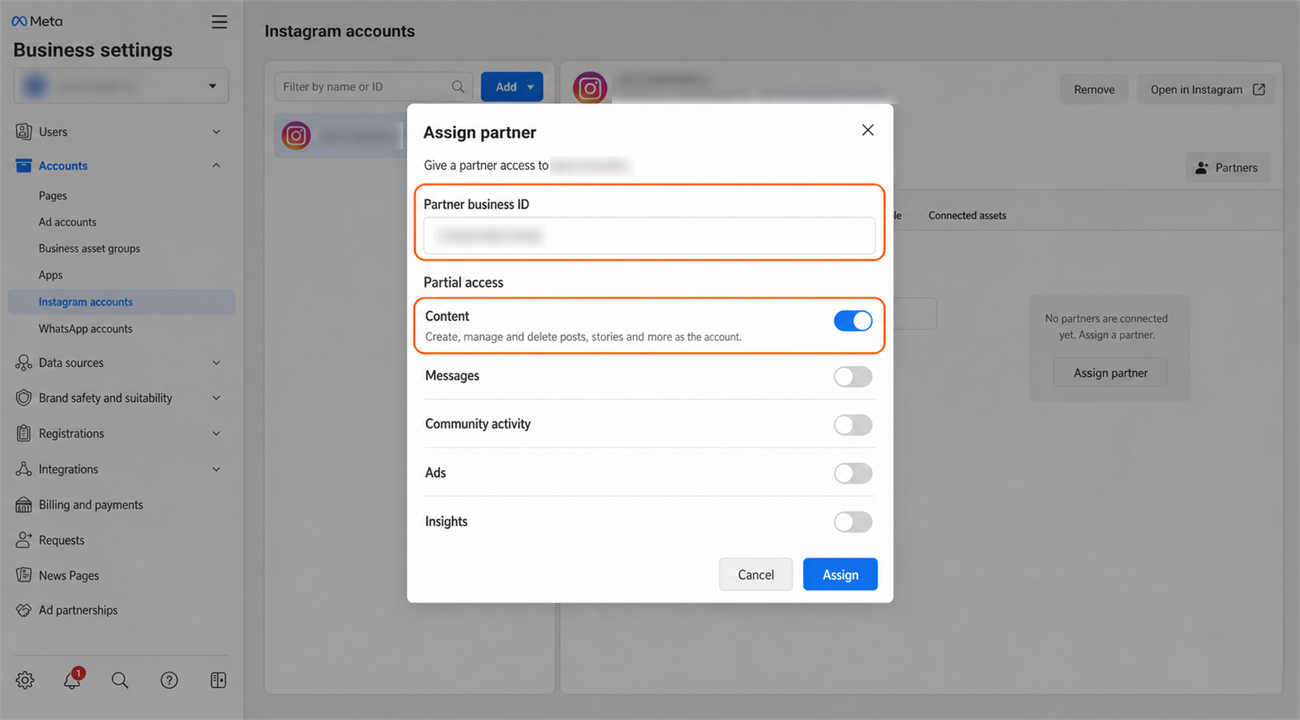
With your Instagram account selected, open its partner access and assign In-Store, using the In-Store Business Portfolio ID we gave you when you linked your Facebook Page. Grant the content permission, which is what lets us create and publish posts.
We are not asking for control of the account itself. We do not need to change your settings, your login, or who else has access.
Step 5 – Confirm the connection
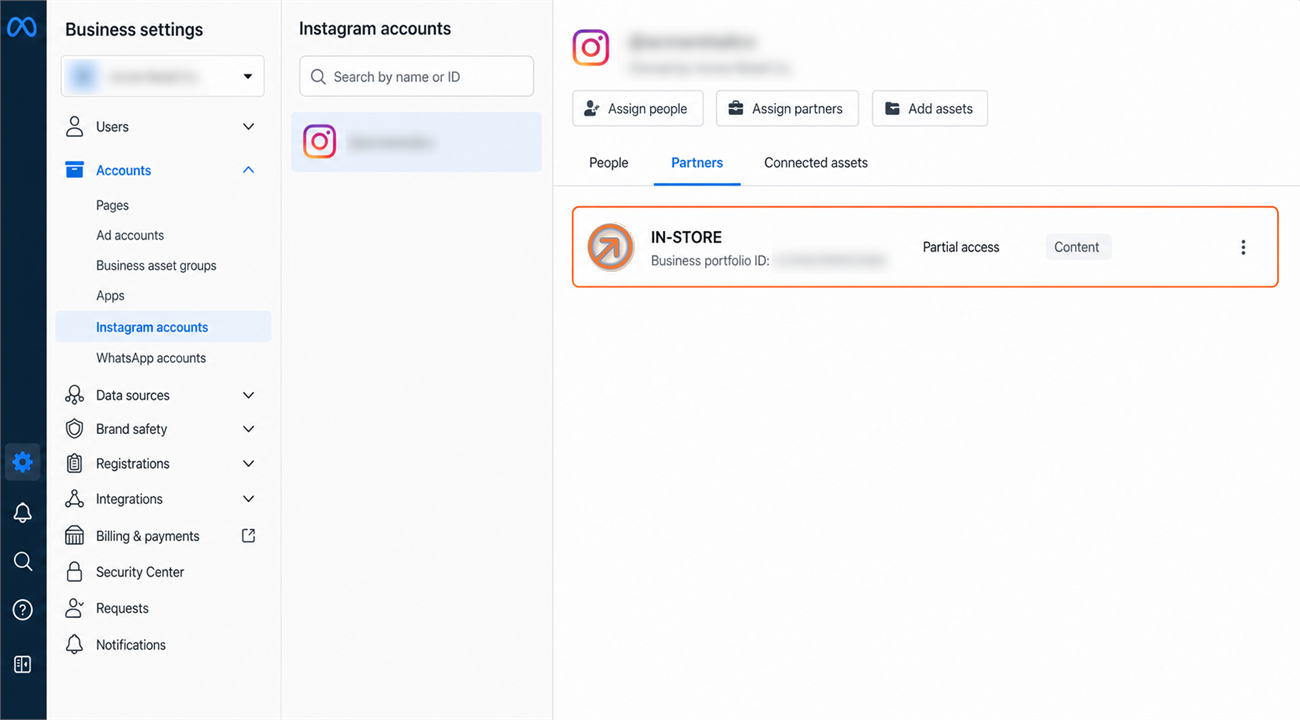
Your Instagram account should now show In-Store as a partner with access. If it does, you are done, and there is nothing to send us.
What happens next
That is it. In-Store can now publish to your Instagram account, and we will confirm with you once publishing is live. You remain the owner of the account throughout, and you can carry on posting yourself whenever you want.
One limitation worth knowing
Instagram does not allow publishing tools to delete posts. We can create and publish, but taking a post down has to be done by you, in the Instagram app, the same way you would delete any other post.
This is not specific to In-Store. This is another Instagram publishing tool limitation, so it works the same way with any other agency or scheduling service.
Removing our access at any time
You are always in control. To remove In-Store later, go to Business settings, then Partners, select In-Store, and remove us from your business portfolio. That revokes our access to everything you assigned us, including your Instagram account.
To remove only Instagram and leave anything else in place, open your Instagram account under Accounts in Business settings and withdraw In-Store’s access to that one asset.
Need a hand?
Ask our interactive chat bot or give us a call. Our contact info can be found in the link below.